The tutorials below can help you navigate the Black Pug system used to create and manage your Gulf Stream Council event registrations. Black Pug is a third-party provider that allows Scouting America councils to manage event registrations and facility reservations. Automated notifications, such as event reminders, sent through the Black Pug platform will come from 247scouting.com.
This system replaces Tentaroo…Tentaroo will close down on 10/31/2026. You will see event registrations now in both systems until that date.
Setting Up an Account
Click here to create an account or log into your existing Black Pug account. This account is not tied to your my.scouting or Scoutbook login credentials. We cannot reset your Black Pug account password.
By creating a Black Pug account, you will be able to save your activity data and register more quickly.
Accessing Your Unit Roster
Once a month we update the Gulf Stream Council membership roster in Black Pug to assist you in registering on behalf of your unit and to validate that participants’ memberships are current and in the correct unit.
Using the roster function allows you to register without typing in the full details for youth and adult participants who are registered in your unit. Anyone in your unit with roster access will be able to see the roster and use it when registering. Click here. Need to add a Trusted User for Roster access, Contact Joanne at the office with your list of Trusted Users for input into Black Pug.
We cannot update rosters for out of council units.
Using a Council Provided Roster
This video is not needed for Unit Account management but it will be helpful for leaders who register for events and have access to the Unit roster. Need to add a Trusted User for Roster access, Contact Joanne at the office with your list of Trusted Users for input into Black Pug.
Black Pug is a Global System…if you have used this system to register for camps in other councils, you can use the same account you already created.
We will download the Unit rosters monthly to Black Pug, it will show currently registered members. Black Pug will validate your membership, when you register for an event.
The big difference in Black Pug is there are really no Unit Accounts like Tentaroo, the Unit Committee Chairs as a Trusted User, will have access to the rosters, they can register as many people as needed in one event registration. Anyone who signs up for an event individually will need to add their Unit number, this will pull all the registrations for the event into the Unit.
Registering For Events
These videos will help you understand the main registration page to help you find the information you need, learn how to update participant information, and complete the checkout step.
2. Completing a registration
You must complete the checkout step in order to secure a spot, even if no fees are due. If a participant is added, but the checkout step is not completed, the person is not confirmed to attend and someone else can book that spot.
**Customers have access to the orange support tab in the lower right-hand corner on the home page of any event. If they click on that tab, it expands to a list of tutorial videos that they can select (and there’s a search feature as well).
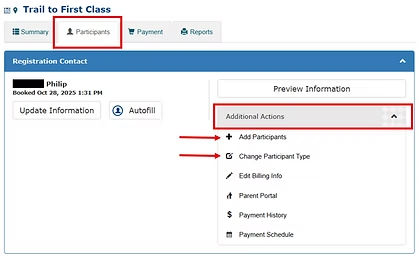
Adding Participants and Changing Participant Types
If you need to add another participant to your registration or change a participant type (from a youth to adult, for example), you can do that in your registration. Click the Additional Actions dropdown menu found in the Registration Contact section.
When adding a participant, you must complete the Checkout process, through the payment step. If you are adding to the waitlist, you must still complete the Checkout process through the payment step (there will be no fees due) in order to put the participants on the waitlist. If you do not complete the Checkout process, the participants (including those who are waitlisted) are not actually registered or included in your registration.
You will need to do this before registration for the event closes. Typically, these changes cannot be made after that date.
Selecting and Changing Participant Classes
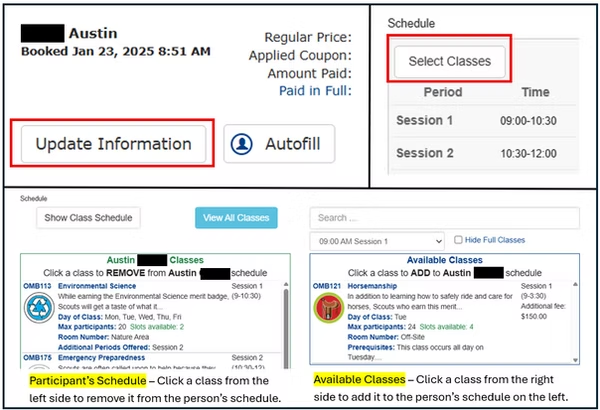
In your registration, click the Update Information button for the participant. Click the Select Classes button on the pop-up window.
To add a class to the participant’s schedule, click a class from the right side of the screen (Available Classes) to add it to the participant’s schedule on the left side of the screen.
To remove a class from a participant’s schedule, click the class on the left side of the screen ([Name’s] Classes). The right side of the screen will now show classes to choose for that period.
Class enrollment and removal happens in real-time. There are no waitlists for classes; however, you can view real-time class enrollment in the Class Attendee Counts report found in the Attachments section of the event’s registration page.
You can typically edit a participant’s class schedule until the registration closes for the event.
Cancelling Registrations or Participants
Parents and leaders are not able to cancel registrations or individual participants. You must contact the council to make any cancellations. Refunds will be provided in accordance with our refund policy.
Click here to view our standard refund policy. Note that some events, have program-specific refund policies that differ from the standard council refund policy.
Contact our Program Specialist – Julia.leith@scouting.org for assistance with cancellations.
Parent Portal for Unit Leaders & Parents
All Units have the option to enable the Parent Portal. Using the Parent Portal is a Unit-level decision once the Parent Portal is set by the Gulf Stream Council. This feature may not be enabled for all events.
The Parent Portal allows parents to make payments for their Scouts (or themselves) directly. Units that enable the Parent Portal can also choose to allow parents to update their Scout’s merit badge class schedule for example.
There are two videos, one for leaders to help set up the Parent Portal and one for parents to learn how to use it.
For Leaders:
For Parents:
Personal account payments
Payment will be made as part of the check out process.
Unit Payments
Payments will be made as part of the check out process.
The system for camp facility reservations will open after Labor Day 2026.
How to Create a Camp Reservation:
